How to Resize Artwork Without Changing the Composition
Resizing artwork for print is not simply a matter of entering a new width and height. To preserve the composition, keep the original aspect ratio locked, resize proportionally, and then resolve any mismatch between the artwork and the finished product by cropping, extending the background, or adjusting the layout. Never stretch one dimension independently just to make the file fit.
The safest order is to confirm the finished trim size, obtain the printer’s template, choose a proportion-preserving layout strategy, check raster resolution at final size, add the required bleed, and export according to the provider’s specifications. That sequence protects both the visual design and the production handoff.
TLDR: The clean resizing workflow
- Confirm the final trim size and orientation before editing the artwork.
- Get the exact bleed, safe-area, color, and export requirements from the print provider.
- Compare the aspect ratio of the existing composition with the new print size.
- Keep width and height linked while scaling.
- If the proportions differ, crop deliberately, extend the background, or reflow the composition instead of stretching it.
- Evaluate raster images at their final printed size and target resolution.
- Keep important type, logos, barcodes, and details inside the safe area.
- Export the requested file format, inspect the proof, and label the approved production file clearly.
Start with the product specification, not the software
Before opening an Image Size or Document Setup panel, define the physical piece you are making. A 4 × 6 inch card, a 2-inch label, and a large event sign may contain the same visual idea, but they require different layouts, viewing distances, bleed settings, and image resolutions.
Ask the printer for the final trim size, required bleed, safe-area allowance, accepted color workflow, preferred PDF preset, and whether crop marks should be included. Bleed, trim, and safe area are separate boundaries: bleed carries backgrounds beyond the cut, trim defines the finished edge, and the safe area protects essential content from normal cutting variation. Adobe’s marks, bleed, and color-output guidance explains how these production controls are handled during PDF export.
A 0.125-inch bleed on every edge is common in commercial printing, but it is not universal. Some label products use 1/16 inch, while other products use 1/8 inch. The product template always takes precedence over a remembered rule. Avery’s artwork guidelines are a useful example of how requirements can vary by printed product.
Preserve proportions before you preserve dimensions
The composition’s aspect ratio is the relationship between its width and height. A 4 × 6 inch design has a 2:3 ratio. An 8 × 10 inch print has a 4:5 ratio. Although both are portrait rectangles, one cannot fill the other without a crop, additional background, or a compositional adjustment.
Keep the width and height controls linked in your design software. Proportional scaling makes every element larger or smaller by the same percentage, preserving circles, logos, type relationships, margins, and image shapes. Changing width and height independently produces distortion rather than a legitimate resize.
| Situation | Best approach | Composition effect |
|---|---|---|
| New size has the same aspect ratio | Scale the complete design proportionally | The composition remains intact |
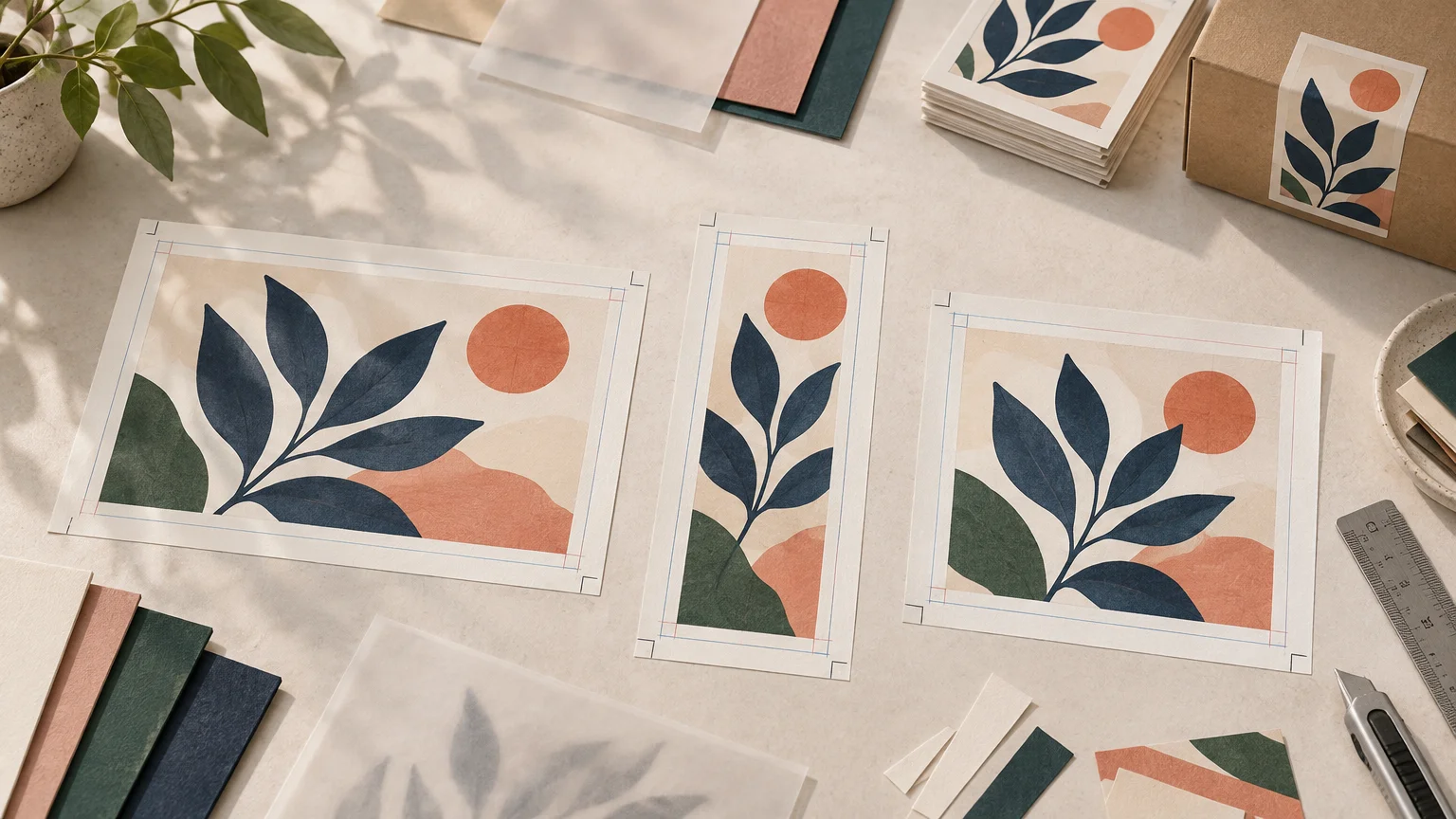
| New size is slightly wider or taller | Extend a background color, texture, or image edge | The main composition can remain unchanged |
| New size has a substantially different ratio | Reflow elements for a new format | Hierarchy is preserved, but placement changes |
| Artwork intentionally runs beyond the frame | Crop from a controlled focal point | Some edge content is removed |
| Raster image is too small for the requested output | Reduce the print size, replace the image, or accept only an appropriate viewing-distance use | Avoids pretending that upsampling creates real detail |
I would extend a simple background before cropping a carefully balanced illustration. For a photograph with generous space around its subject, a controlled crop may be cleaner. For a card becoming a square label, a true reflow is often the best answer because the format has changed too much for automatic scaling to solve elegantly.
Understand the raster-resolution calculation
Raster artwork is made from a fixed number of pixels. Its physical print size equals its pixel dimensions divided by its pixels-per-inch value. In the other direction, required pixels equal the intended physical size multiplied by the target PPI. Adobe’s image size and resampling documentation explains why pixel dimensions, physical dimensions, and resolution are connected rather than independent settings.
For example, an image that is 1800 × 1200 pixels can print at 6 × 4 inches at 300 PPI. Printing those same pixels at 12 × 8 inches produces an effective resolution of 150 PPI. Typing “300” into the resolution box does not recover missing detail unless the software resamples the image, and resampling only estimates new pixels. It can soften edges or introduce artifacts.
A final-size resolution of 300 PPI is a common benchmark for detailed cards, labels, stickers, and other pieces viewed at close range when the provider does not specify something else. It is not a universal requirement for every product. Large-format graphics may work at a lower effective resolution because viewers see them from farther away.
A worked card example
Suppose the finished card will be 4 × 6 inches and the printer requires 1/8-inch bleed on every edge. Adding bleed to both sides produces a document measuring 4.25 × 6.25 inches. At 300 PPI, that full bleed-size canvas corresponds to 1275 × 1875 pixels. The background should reach the outer canvas edge, while important content stays comfortably inside the trim boundary.
Do not enlarge the original composition until it merely touches the bleed edge if doing so crowds the type against the trim. Create the correct canvas first, scale the composition proportionally within it, and extend only the background elements needed to cover the bleed.
A worked label example
A 2 × 2 inch square label with 1/16-inch bleed on each side needs a 2.125 × 2.125 inch file. At 300 PPI, the mathematical result is 637.5 pixels per side, so use the provider’s template or specified whole-pixel dimensions rather than improvising the rounding.
For a sticker or label project, build to the supplier’s exact shape and cut-line instructions before uploading the final artwork. CustomStickers is a practical ordering destination for custom stickers, labels, vinyl formats, and related artwork preparation once the file dimensions have been confirmed.
Treat vectors, type, and linked assets differently
Vector logos, icons, type, and simple illustrations can scale without the same pixel-resolution limitation as photographs. That does not make them immune to production problems. Very fine lines may become fragile, tiny lettering may lose clarity, and effects such as blurs or shadows may contain raster components. One provider’s label requirements, for example, specify embedded fonts and graphics, lines of at least 0.5 point, and type of at least 5 point. Those are provider-specific limits, not universal design laws.
Inspect the resized design at its actual physical dimensions. A headline that looked restrained on a poster may dominate a postcard; a legal line that was acceptable on a large package may become unreadable on a small label. Preserving composition means retaining visual hierarchy, not blindly preserving every numerical type size.
Check every linked photograph or texture after scaling. A placed image can look unchanged while its effective resolution falls because it has been enlarged inside the layout. If editable files are requested, include or correctly relink the assets. Adobe’s packaging process can gather the document, available fonts, linked graphics, and a report, subject to font licensing and file availability.
Rebuild bleed and safety after resizing
Bleed is not decorative padding. Any color, photograph, or texture intended to reach the finished edge must continue beyond the trim line. Conversely, logos, essential text, QR codes, barcodes, and delicate borders belong inside the safe area. A border positioned too close to the trim can make normal cutting variation look like a design error.
After changing the format, inspect all four edges individually. Extending a background does not necessarily mean enlarging the whole composition. In many files, the polished solution is to keep the focal group proportional, preserve its spacing, and extend only a background field or nonessential image area.
Crop marks are not automatically required. Some print workflows request them, while template-based upload systems may want a clean PDF at the full bleed size without additional marks. Follow the supplier’s instructions instead of adding every available export option.
Match color and export settings to the printer
Avoid treating “convert everything to CMYK” as a universal final step. The correct color handling depends on the printer’s documented workflow, output profile, and upload system. Avery recommends CMYK for its four-color GRACol label process and warns that converting RGB artwork may visibly shift color; Adobe likewise directs users to choose PDF color-conversion settings for the intended output workflow.
When accepted by the supplier, a high-resolution PDF is usually a dependable handoff for cards, stationery, labels, and other page-based artwork. Fonts should be embedded, and linked graphics must be included correctly. Avery recommends a Press Quality PDF and suggests PDF/X as an option for improving printability in its workflow.
This resizing step should connect to a broader custom-print artwork preparation workflow. For a complex package with dielines or finishing layers, use a dedicated packaging file handoff checklist rather than treating the PDF as the only deliverable.
Final preflight checklist
- The document uses the confirmed trim size and orientation.
- Width and height were scaled proportionally.
- Any aspect-ratio mismatch was resolved by cropping, extending, or reflowing—not stretching.
- Raster images have sufficient effective resolution at final size.
- Logos, type, barcodes, and essential details remain inside the safe area.
- Background elements extend through the full required bleed.
- Fonts are embedded or otherwise handled according to the printer’s instructions.
- Linked images and graphics are present and current.
- Color settings follow the provider’s documented workflow.
- The exported file uses the requested PDF preset, marks, and bleed settings.
- The electronic proof has been checked for copy, placement, scale, trim, and safe-zone clearance.
- The approved production file has a clear version name.
An electronic proof is valuable for checking content, placement, size, trim, and general color direction, but it is not an exact simulation of printed color because displays vary. Keep the proof and final export distinct by using a disciplined print-project version naming system.
Make the format serve the composition
The best resize is rarely the one with the fewest clicks. It is the one that preserves the focal point, hierarchy, spacing, and intended edge treatment while meeting the printer’s physical specifications. Begin with the template, lock the proportions, and decide consciously whether the new format needs scaling, cropping, background extension, or a genuine layout variation.
For your next handoff, create the final-size document first and place a copy of the original artwork inside it. That gives you a controlled production canvas, preserves the untouched source, and makes every adjustment visible. Once the composition works at actual size, preflight the resolution, bleed, safety, color, assets, and PDF export before approving the file.